CompuGrade Teacher Manual
2. Teacher Guide: Course Authoring & Monitoring
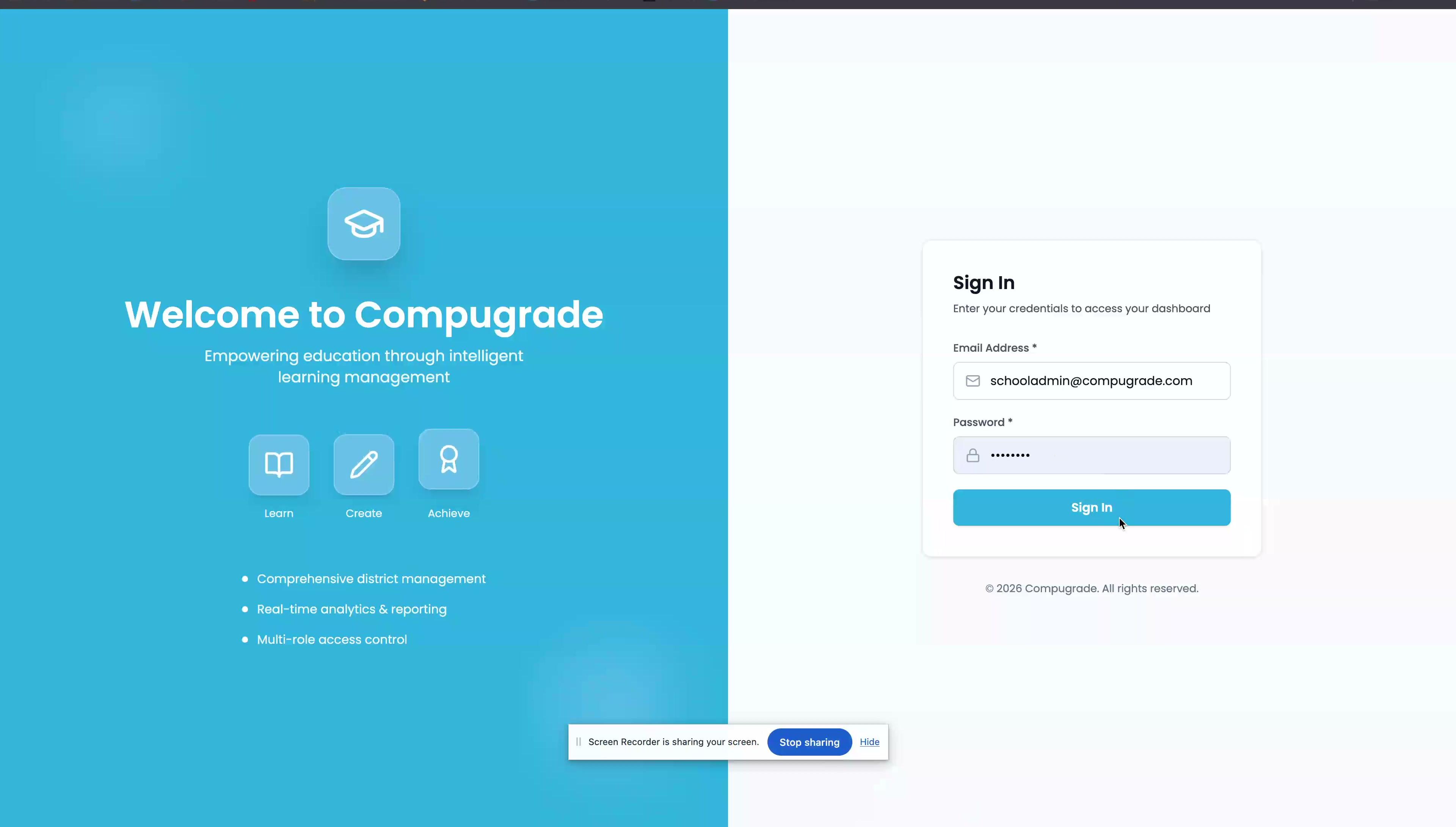
Teachers use the Open edX Studio platform to create coursework and the Admin Dashboard to monitor student progress and generate reports.
2.1 Generating a Lesson via the AI Writer Engine
- Access Studio: Log in to your Open edX Studio authoring environment.
- Open the Course: Click on the course you want to edit and navigate to the specific Section and Subsection (Lesson) in the course outline.
- Add the Component: Click the "Advanced" component button and select the CompuGrade Component to insert the grading block into the page.
- Open the Writer Engine: Click Edit on the component, which launches the custom Authoring UI.
- Upload the Answer Key:
- Create a perfect "Answer Key" document in Word or Excel containing exactly what you want the students to build.
- In the Writer Engine UI, click Upload File and select your answer key.
- Generate Instructions: Click the "Analyze & Generate" button. The AI engine will parse the document structure and automatically write step-by-step instructions for the student, mapping them to grading rubrics.
- Review and Save: Review the generated instructions. You can manually edit the text or adjust the point weightings. Click Save to publish the lesson to your students.
2.2 Monitoring Student Progress in the Dashboard
-
Access the Dashboard: Log into
staging-api.dashboard.compugrade.comusing your Teacher credentials. -
View Class Analytics: Your home dashboard will display aggregated metrics for your assigned classes, including average scores, completion rates, and recent submissions.
-
Generate Grade Reports:
- Click the Reports tab in the left sidebar.
- Select Grade Report from the dropdown.
- Use the filters to select your specific School, Class, and a Date Range.
- Click Generate. The table will populate with final scores for every student. Click Download CSV to export it to your district's gradebook system.
-
Identify Struggling Students:
- Select the Overdue Lessons Report to see a list of students who missed submission deadlines.
- Select the Lesson Activity Report to see how many "Check Work" attempts students are using, helping identify who is struggling with specific concepts.
-
Override a Grade:
- Click on the Gradebook tab.
- Find the specific student and lesson row.
- Click the Edit (Pencil) Icon next to their final score.
- Enter the new score and provide a mandatory Audit Reason (e.g., "Student submitted late due to illness, partial credit applied").
- Click Save Override. The new grade will be reflected across all reports immediately.